Sharing brands and inviting your team
Invite people to view or edit your brands, and manage their access.
You can invite other people to help manage your brands, giving each person view or edit access to the brands you choose.
Note: Inviting collaborators is a paid feature — the free plan doesn’t include additional users.
Access levels
- Owner — you. Full control of the brand, including deleting it and managing access.
- Editor — can create and edit e-labels in the brand, and change the brand’s settings. Editors can’t invite or manage other users.
- Viewer — can view the brand’s e-labels but not change them.
Invite someone
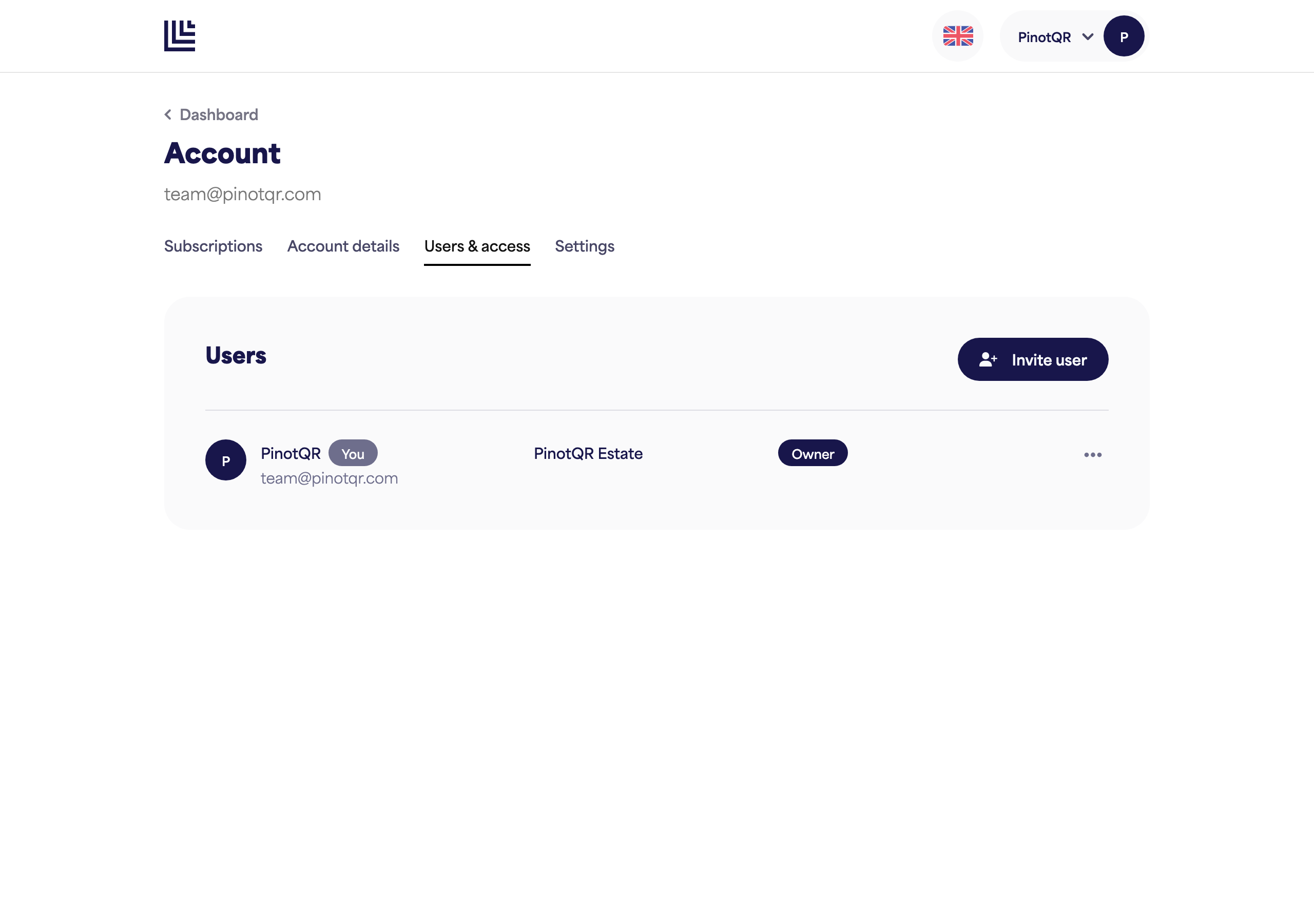
You can invite people from two places: a brand’s Sharing panel, or the account-wide Users & access page.
- Open the brand and click Sharing (or go to Users & access from your account menu).
- Click Invite user.
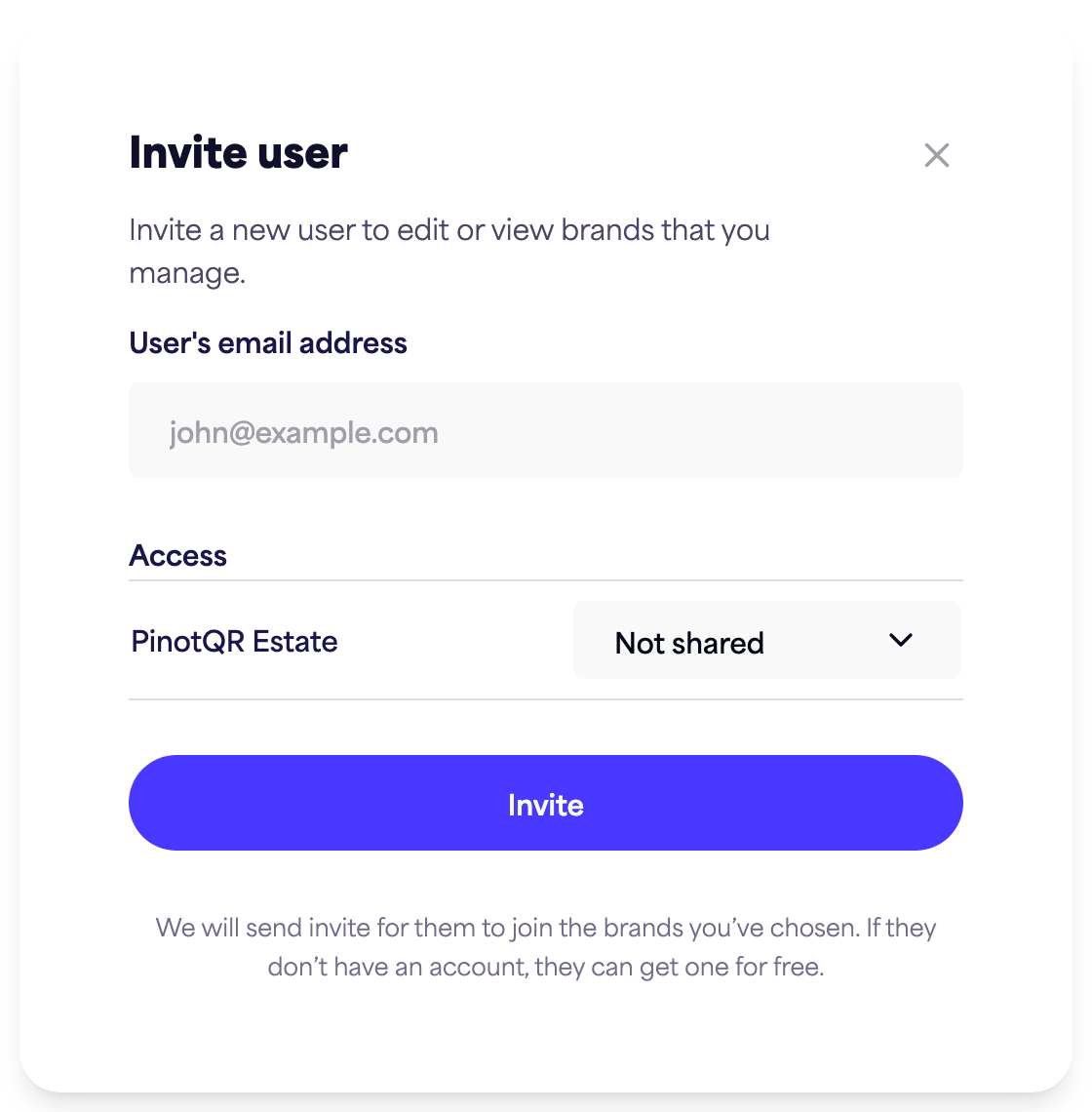
- Enter the person’s email address.
- Choose which brands they can view or edit (you must grant access to at least one brand).
- Click Invite.
We’ll email them an invitation. If they don’t already have a PinotQR account, they can create one for free to accept it.
Pending invites
Until someone accepts, they show as Waiting for registration. They only gain access once they’ve accepted and registered.
Manage or remove access
From Users & access (or a brand’s Sharing panel) you can:
- Change someone between Can view and Can edit for each brand.
- Remove access to a brand, or remove the person entirely.