Controlling who can see your e-label
E-labels are live as soon as you create them — here's how to hide one or bring it back online.
When you create an e-label, it’s published straight away — anyone who scans its QR code sees it immediately. There’s no separate publishing step to go live. If you ever need to hide an e-label, you can unpublish it.
Published vs. draft
- Published — the e-label is live. Scanning the QR code shows it to the public.
- Draft — the e-label is hidden. The QR code still exists, but scanning it won’t display the e-label. You’ll see a notice: “This label is in draft state. Publish it to let people scan the QR code.”
Hide an e-label (unpublish)
- Open the e-label from your brand page.
- Click Unpublish.
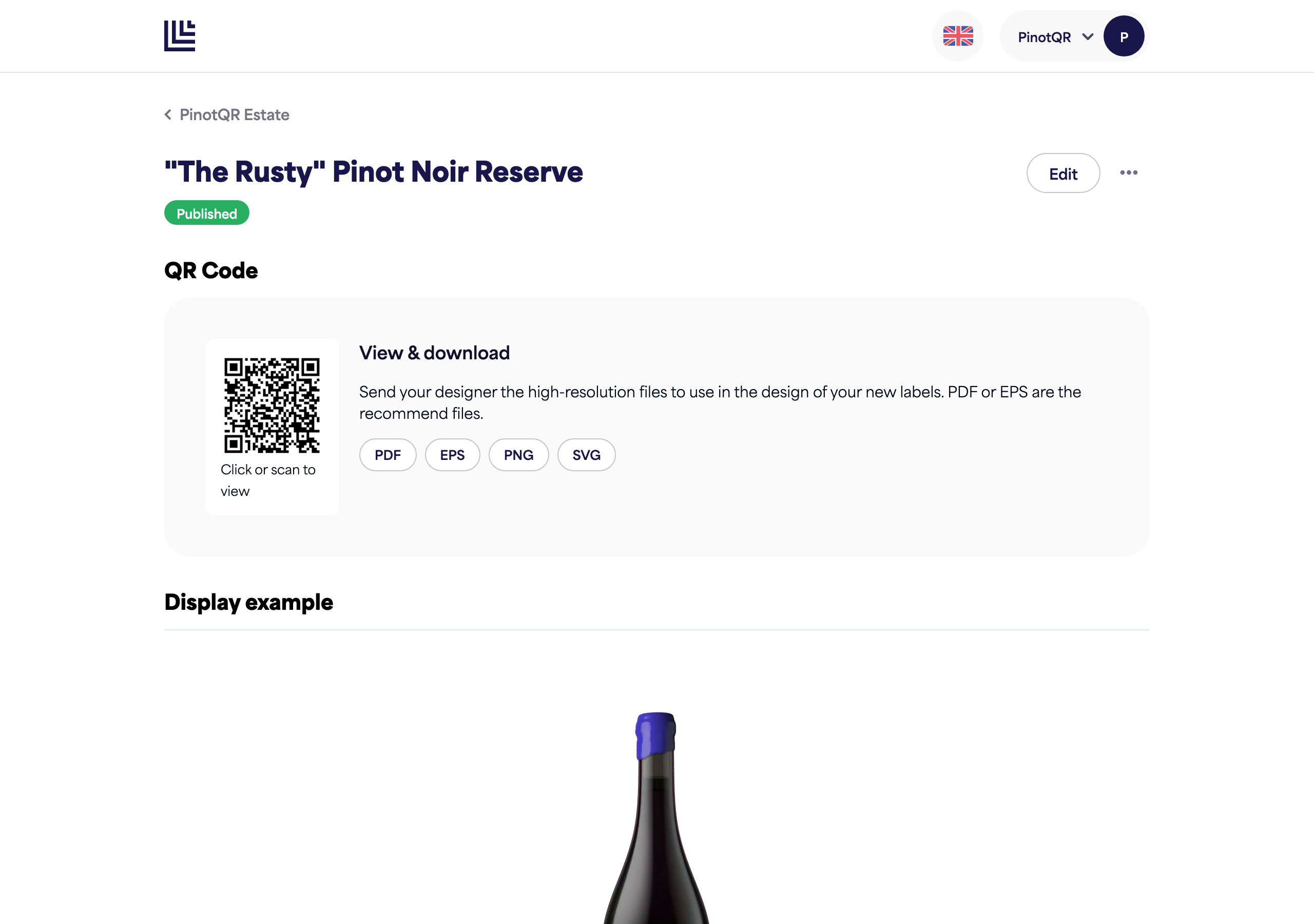
The e-label moves to draft state and is no longer visible to anyone who scans the code.
Bring it back online (publish)
- Open the draft e-label.
- Click Publish.
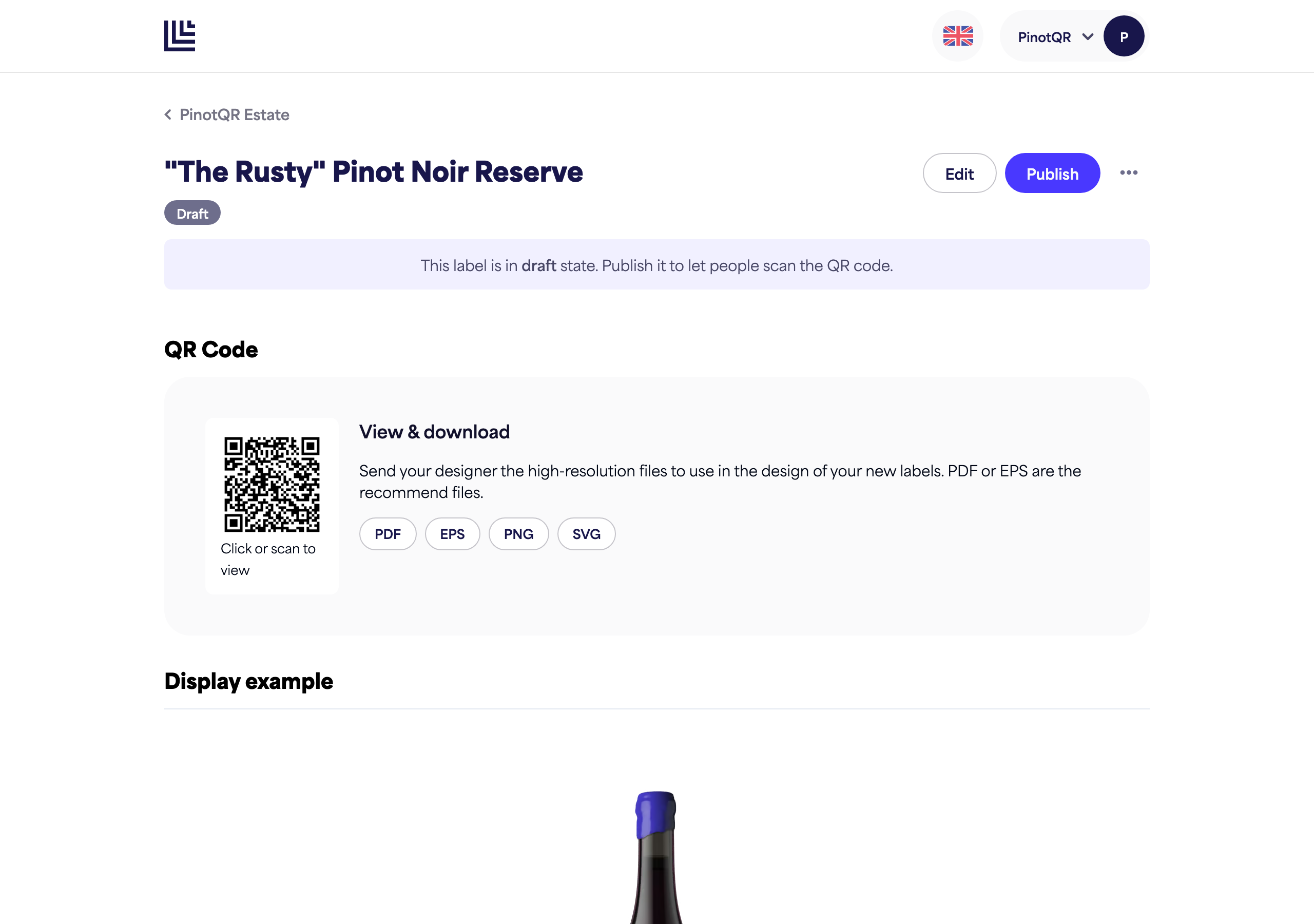
Scanning the QR code shows the e-label to the public again.
When you might use this
- You want to prepare an e-label privately before sharing it.
- A wine is temporarily unavailable and you’d rather not show its page.
- You need to make a round of edits without the current version being visible.
💡 Tip: You don’t need to unpublish just to make edits — changes you save to a published e-label go live instantly.